Manus Now Generates Native PowerPoint Files — Editable Charts, Tables, and AI Visuals Included
Generate Manus native PowerPoint files with fully editable charts, tables, and AI visuals. Create true .pptx decks without formatting loss or conversion issues.
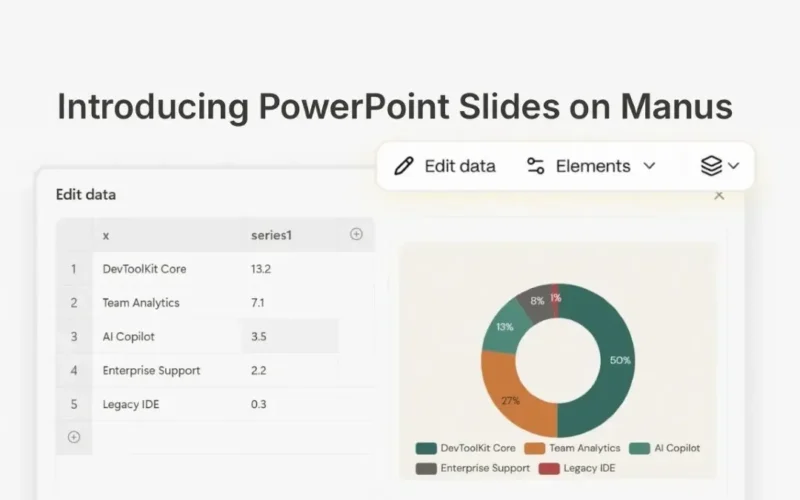
Manus native PowerPoint files now arrive with fully editable charts, tables, and AI visuals. This new mode creates true .pptx decks from the start. Therefore, users avoid conversion steps and formatting surprises entirely.
These outputs open perfectly in Microsoft PowerPoint or Google Slides. Previously, web-based exports often broke layouts or flattened charts. However, this update changes how useful editable AI presentation decks actually are for professionals.
Why Manus Native PowerPoint Files Matter
Earlier versions converted web formats to .pptx upon export. Consequently, charts became flat images and table formatting broke. Slide layouts also shifted during this frustrating process.
The new mode skips that layer completely. Every element is structurally real within the deck. Charts retain live data tables you can edit directly. Furthermore, tables support merging and resizing properly. Standard slide masters now guide all layouts seamlessly.
Creating Content With Editable AI Presentation Decks
PowerPoint mode accepts various inputs while improving output quality. First, connect Google Sheets via the Workspace connector for spreadsheet data. Manus analyzes numbers and builds editable charts automatically.
You can also describe a research topic for synthesis. The tool generates cited content and data-backed visuals natively. Additionally, upload PDFs or documents to extract key points into narratives.
Finally, paste meeting notes or point Manus at a URL. The system structures analyses as polished decks ready for distribution. For more on maximizing AI value, read about whether ChatGPT Go Explained: Is OpenAI’s $8 Plan Worth It in 2026?
In-App Chart Editing Capabilities
Charts are structurally real objects, not flat images. Thus, you can edit them inside the Manus viewer before downloading. Click any chart to access Elements and Edit Data controls.
Elements lets you toggle axes, labels, or gridlines instantly. Meanwhile, Edit Data opens a spreadsheet overlay on your slide. Change a cell value and watch the chart redraw immediately. No Excel round-trip is necessary.
How to Use PowerPoint Mode
Select the Slides tool in Manus first. Then choose PowerPoint from the mode dropdown alongside Standard and Image options. Describe your topic or upload relevant files next.
Manus outlines and designs the deck automatically. You may edit charts in the viewer or download immediately. The resulting file behaves exactly like a natively built presentation.
Comparing the Three Slide Modes
Standard mode offers fast, versatile general-purpose decks. Image mode uses GPT Image 2 for high-impact visual slides. However, PowerPoint mode optimizes specifically for data-driven business presentations.
This option ensures editable charts and tables remain intact. It is best when files must live in PowerPoint after delivery. Teams delivering data-heavy content will find this gap finally closed.
Availability and Access
PowerPoint mode is available today in Beta for 1.6 and Max model users. Reliable delivery no longer requires manual reformatting.
Frequently Asked Questions
Can I edit charts generated by Manus?
Yes. Charts are native objects with live data tables. You can modify values directly within the Manus viewer before exporting.
Does this mode work with Google Slides?
Absolutely. The generated .pptx files maintain full compatibility with both Microsoft PowerPoint and Google Slides without layout breaks.
What inputs does PowerPoint mode accept?
You can use Google Sheets, PDFs, URLs, meeting notes, or text prompts. Manus converts these sources into structured, editable slides automatically.
